Show Control Protocols: Connecting Figure 53 QLab and ETC Eos
I’ve been doing show control since the 1980s, and have watched it evolve along with all the other backstage technology (articles about that here). For the 2026 USITT conference in Long Beach, I was asked to do a session about show control protocols, and so I proposed a live show control demonstration. This was a great excuse for me to finally learn a little bit of ETC Eos programming and interface with an Eos console; this is something I last did in 2014 (that writeup here).
Show Control
I have an entire book on the topic, but, basically, show control is connecting more than one entertainment control system together. In this case, I’m connecting lighting and sound controllers. There are two main ways to integrate systems; you can use an event-based, “cue” approach, or synchronize multiple systems with a show clock using some kind of time code. We’ll go through both approaches here.
The Setup
To get started, this is the setup I built (click any graphic to enlarge) around Figure 53’s QLab on a Mac Mini, and ETC Eos Nomad running on a Windows laptop. I picked this software because each is widely used.
And here’s the IP addresses and VLAN info:
Impact of Networks on Show Control
In the old days, connecting entertainment control systems together into a show control system was a morass of different electrical interfaces, cables, connector pin outs, break out boxes, data rates and protocols. Back then, we often would advise selection of gear based on which interfaces were available on that particular piece of equipment (see my 1994 book, available in a free PDF, for a time capsule of that insanity).
Luckily for us, networks have dramatically simplified the ways show control systems can be connected together, both for simple and complex implementations. Ethernet is now the standard digital data highway in just about every industry, and if you understand networking basics (of course I have a book on that too), a lot of things get easier. Networks can now be the simplest and simultaneously most extensible and powerful way to connect systems (the one exception is, unfortunately, time code, where there is no widely accepted network-based standard; more on that below). For the network based examples I document below, I had each system up and running literally within minutes of powering up. In the old days, it could take the better part of a day, and a lot of rewiring to get things talking the first time (usually due to incomplete documentation)
Let’s go through several ways of connecting the systems, and discuss the relative strengths and weaknesses of each.
Open Sound Control (OSC)
Open Sound Control (OSC) is almost certainly the most widely used event-based show control protocol today, and was developed in the early 2000s as a way to send musical and other control messages. It’s just a framework, and contains no actual control message definitions, so each product developer comes up with their own “dictionary” (here’s the dictionary for QLab; here’s Eos). Developed in the days before the availability of really cheap computer horsepower, OSC implements a rigid low-level structure, and messages have to be “padded” out if the message is not in a chunk of four octets. I’ve always thought this was a pain in the ass, but, luckily, modern systems do all this grunt work for you. (In the old days where OSC implementations weren’t as thorough, the developers at Figure 53 helpfully developed a “pseudo-OSC” approach which really simplifies plain text communications when you do have to type something in; more on that here from 2013, and this is still something very useful today.)
Here’s a wireshark capture of a message from QLab to Eos firing Cue 1:
So, to fire a cue on Eos, you send from QLab /eos/cue/1/fire 00 , 00 00 00 (where the 00’s are null padding octets—see why I’ve always thought OSC was a pain?)
And to fire a cue on QLab, you can easily configure Eos to send a message automatically. Here’s a wireshark capture of that:
So that’s /cue/1/start 00 00 00 00 , 00 00 00
OSC from QLab to Eos
With the system plugged up as shown above, It literally took me a few minutes to get QLab firing EOS. ETC has a great explainer here on how to do this, but I’ll document here what I did (I often use this blog as a searchable notebook). First, you have to configure Eos to accept OSC messages on the appropriate Ethernet adapter. As you can see in the diagram above, running Nomad on a laptop, I used a second, separate Ethernet interface to keep the sACN lighting control traffic separate from the show control messages.
Next, I configured Eos to receive (RX) OSC messages; by default it uses port 8000:
Next, in QLab, I made a Network patch with a type of “ETC Eos family”, and entered in the IP address of the Eos interface that I had configured to accept OSC (in my case, that’s 192.168.117.102). You can use either TCP or UDP; TCP offers “guaranteed” delivery, but carries additional overhead that can complicate things. Since this was a closed network VLAN with only minimal traffic, I just used UDP and never saw any problems.
Next, I created a network cue in QLab, selected the OSC network patch, and then just selected the Cue (or other action) I wanted. QLab handles all the low level formatting bits for you; press the send button to test it and that’s it! This worked for me the first time (that would have never happened in the pre-network days!), and was rock solid over days of testing.
OSC from Eos to QLab
ETC added a pretty simple feature to fire any QLab cue with the same cue number as is being executed on the Eos console. ETC has a nice writeup on that process here.
In QLab, I went in and ensured OSC was enabled, and set it so that no passcode is needed (passcode reception is on by default, which is a good security approach, but I don’t think Eos can manage that connection):
Next in Eos, I configured the OSC Output, setting the port to 53000 which is what QLab uses for OSC. I put in the send string of “/cue/%1/start” as provided by ETC (there are various options, check the link above), and the target IP address of the QLab system (192.168.117.101 in my case).
For me, again, this worked the first time. However, digging around in Wireshark as I am wont to do, I found that Eos sends quite a bit of status information to QLab to which QLab then responds with errors. For example, with one Cue trigger from Eos, there was an exchange of over 30 messages:
Today’s powerful processors and networks can likely handle this back and forth with no problem, but being old and coming from the days when processing power and network bandwidth was precious, I get paranoid about this kind of stuff and prefer to clean it up. I asked the excellent folks at Figure 53 tech support about this, and they told me there’s a command you can send (via OSC, of course) from QLab to Eos to have it stop the status updates:
/eos/filter/add /cue/*/start
More detail from ETC on this here.
I made a “Custom Message” inside the network cue with the same network patch:
And that cleaned it all up. Here’s the Wireshark capture showing the filter command sent from QLab (source of 117.101) and then a cue message sent from Eos with the filter applied:
One important note about this from Figure 53: this filter setting is not persistent and gets reset in the Eos after a reboot. So it’s probably worth adding a “filter on” cue like this in your preshow. Hopefully ETC will someday add a system option to disable this.
MIDI Show Control (MSC)
There’s one other common way to trigger systems for event-based show control: using 1990s era MIDI Show Control (MSC). MIDI was well designed for for its 1980s application: connecting synthesizers. The seven-bit structure is fine for a keyboard with a maximum of 88 keys, but the low level structure is really not well suited for things like complex show control applications. But 30+ years ago, MIDI started appearing in lighting and sound consoles, and so MSC was developed to implement a show-based protocol (more on that history on the link above). MIDI is a point to point, old school, electrical standard (on a current loop), and the troubleshooting options are limited (MIDIOX, the old widely used shareware MIDI monitoring tool now goes to an unsecure page and the software was last updated in 2017). With networks gaining widespread use in our industry over the 10 or 15 years, I have come to prefer using OSC or other network-based protocols over anything MIDI (or serial or etc). Once you’re comfortable with networks, it’s simple to monitor and troubleshoot network traffic (see wireshark captures above), it’s a lot easier to send networks long distances, you can route it between systems, etc etc etc. All that said, there are some times where—for reasons of departmental politics or technological limitations—MSC is the only viable solution. So it’s worth taking a look at it.
I bought a couple little cheap CME C2MIDI Pro USB C MIDI adapters (referral link here) and a couple MIDI couplers (referral link here) so I could plug them together (you can see these in the video below). I certainly would not want to hang a professional show on these cheap little MIDI adapters, and I did have a problem where they stopped working after one of the machines went to sleep. But they are certainly OK for testing, learning and maybe offline programming. I plugged these as shown in the first block diagram. These units are “class compliant”, meaning they don’t need additional drivers; they pretty much are plug and play. One just showed up on my Windows laptop and the other on the Mac Mini (note they will power each other over the MIDI line which can be a bit surprising):
In QLab, the interface then just shows up and I created an output MIDI patch:
To enable MSC In the Eos software I just went in to ensure (on a Nomad setup, anyway) that USB MIDI was enabled:
And then, in the Eos Show Control window, I enabled MSC reception.
In the old days, MSC might be split or looped thru to several devices, so the developers included in the standard a “Device ID”. The idea was that if you have two lighting consoles that are being driven from the same hardware MIDI line, you would set each with a unique ID so you could address them separately. Again, this is another benefit of networks; you can just set each device to its unique IP address, connect everything together and then connect through each console’s unique IP.
These days, MIDI adapters are cheap, so, personally, if I was forced to use MSC on multiple target devices I would drive a separate MIDI line to each device, and just set them all to Receive Device ID 1, as shown here:
In QLab, I created a MIDI cue, selected MSC as the message type, Lighting (general) as the MSC Command Format, Device ID 1, and then the cue:
If you put in a Cue Go without a Cue number, it will just execute the next cue.
Time Code
Time Code has its roots in the 1960s as a way to synchronize linear, analog media, and is still used in a wide range of those kinds of applications today. We often use it in live production to send a show clock (unrelated to time of day) between systems for time-based applications. With everything on a computer these days, there’s less old school media synchronization, but time code is often used as a trigger to fire events like light cues. Two primary solutions evolved over the years: SMPTE LTC (Linear/Longitudinal Time Code), which is digital bi-phase data sent at audio levels over audio interfaces, and the 1980s era MIDI Time Code (MTC), which takes the SMPTE time code “address” and breaks it into standard MIDI messages. Eos and QLab support both, with appropriate hardware.
Note: These days, with networks, it would be great to have a way to send time code over a network, but sadly, there’s currently no standard way to do this. We explored this situation back in our Show Control “geekout” in 2019; link to a video here.
LTC
Out of the options of hardware LTC or MTC, I prefer LTC because I can distribute it using standard professional audio equipment or even sample it and distribute it over a network using Dante or something similar (This can be highly reliable but of course is kind of insane: taking a digital square wave signal, sampling it like an audio waveform, transmitting it over a network, and then D to A converting it back to an audio signal to extract the digital square wave signal. But that’s where we are today and this kluge can be very reliable.) QLab can generate LTC as an audio signal directly; Eos doesn’t natively deal with audio signals so it needs something like a Response SMPTE Gateway. I didn’t want to invest in this (about $800) for this test, but here’s how I would likely configure it for my little test system:
Again, being old, I like to segment out types of traffic, so I kept the control in the diagram above separate. The SMPTE LTC signal, however, is just transmitted via Dante as audio so can exist on an audio network with no problem.
Mark La Pierre has a helpful demo video about configuring LTC on an Eos.
MTC
If I was doing this on a show, I would almost certainly invest in a ETC SMPTE gateway. But for experimenting and programming, MTC can work, and for my little test, I used the MIDI adapters described above. In addition to the configuration detailed above, I had to make sure that MIDI Timecode Receive was enabled in the Eos Show Control menu:
Then, in the Show Control tab on the Eos, I made a list, selected External to On and the type to MIDI Time Code using the softkeys:
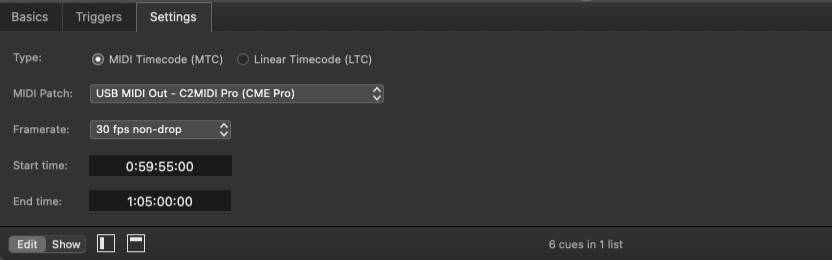
On the QLab side, I created a MIDI output patch:
I made a time code cue, and started my little show at 01:00:00:00 with five seconds of “pre-roll” starting at 00:59:55:00. This gives a few seconds before the music starts to make sure everything’s working. For most (non real time video sync) applications, I just use 30FPS non-drop.
I put the time code cue and the audio track into a group cue in “timeline” mode, and also added some housekeeping cues to fade and stop the audio track, stop the time code and then reset.
When the QLab cue is running, Incoming time code shows up on the top of the Eos screen.
You can enter events on the console manually into the Show control tab, or use the capture feature:
Here’s a little video of the end result:
This took me a long time because I had to learn Eos configuration and programming basics, but the actual time code interfacing was very straightforward, because Figure 53 and QLab made their implementations so clean and easy.
The hard part of show control is always the hours and hours it takes to polish the cues and cue timing; but the control connections—especially with a network—is now pretty easy.
If you’re going to be at USITT in Long Beach, come see me attempt this demo live Friday March 20 2026 at 3:30pm in the Promenade Meeting Room 202A and 202B, Second Floor!
Special thanks to Nick Gonsman at ETC for help with Eos Nomad, John Robinson, my former colleague at CityTech for answering EOS questions, and the great Corn Mo for the use of his .357 Lover track!